- First and foremost, make sure that your device has the latest firmware. In many cases, new firmware means support for Assisted GPS, a way of vastly speeding up GPS acquisition time - see my piece on this on AAS.
- Make 100% sure that 'Settings | General | Positioning | Positioning server' has the right access point - it should be set to your main 3G data provider, e.g. 'Vodafone live' or 'Orange Internet'. If this is wrong, then GPS locks will be several minutes at least on many S60 phones.
- Make sure you're in an area of data coverage - being stuck in the wilds or in a valley will mean no data, which in turn means no Assisted GPS.
- Don't try and get a GPS lock while moving, unless there's absolutely no alternative. It's hard enough as it is for your phone to lock onto half a dozen satellites whizzing overhead at thousands of miles per hour - adding in extra complications by moving the device itself just slows down lock times considerably.
- Be realistic if you are moving or if there are tall buildings around, or if you're in a vehicle with an incomplete view of the sky - locks may take several minutes. The reason why dedicated sat-navs can acquire GPS locks more quickly in these challenging circumstances is that they have higher power, more sensitive receivers on board - the GPS inside most smartphones tends to be of lower power, to save battery life.
- Don't cover up the GPS antenna. On the N95, this is at the bottom of the keypad, so extend the slide. Find out where the GPS antenna is on your device and don't cover it with your hand during use - human flesh is reasonably good at blocking radio waves.
As a reference, if the last lock was in your current location and if not more than a day or so has elapsed, a GPS-equipped, data-enabled phone with a good view of the sky should get a lock in around 10 seconds. Each of the factors above play a part in extending this time, but with care you should never have to wait more than about 40 seconds.
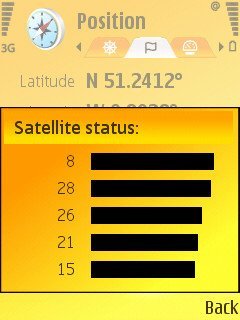
You can check how the GPS is getting on, in terms of which satellites it's tracking and how strong the signal, using the 'GPS data' utility supplied in all S60 devices. In the 'Position' screen, use 'Satellite status' on the menu. As each satellite gets locked and used in a position fix, its bar will be filled in.
How to: Use Nokia Maps 2.0 more productively
With this software now being built into all new S60 devices and a free download for all others, here are some tips to help you get more from it:
- Maps 2.0 can work offline and online, with the choice made by you in 'Settings'. Make sure you enable 'Go online at startup', since the depth and accuracy of searches is far better. For example, many UK seven-character postcodes aren't matched properly when working totally offline, whereas the extra data online produces exact and perfect matches.
- Do make sure that you save yourself potentially big data bills by using Nokia's MapLoader utility to pre-load country data onto your phone's memory card. This also makes navigation smoother, since Nokia Maps doesn't have to spend half its time downloading and processing new map tiles over the air!
- You can save a huge amount of fiddling, embarrassment and time by planning ahead. Search for, find and set as favourites any places that you know you'll be wanting to drive to when on a trip. Then, with wife and kids waiting, you can calmly select the appropriate favourite rather than fiddling around ('What's the postcode?' 'Are you sure that's right?' 'What do you mean 'No matches'?', and so on).
- Use a 12v power cable if at all possible. With GPS, data and screen all on permanently during navigation, even a one hour jaunt will drain much of a daily charge. And, when plugged in during a car journey, you've got the peace of mind that your phone is actually charging. A win-win situation.
- If navigating at night, don't forget switching to the 'night mode' - in addition to being more useable in the dark, it also makes a nice change!
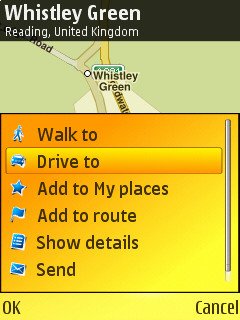
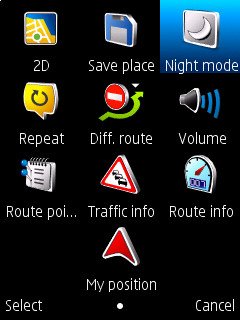
- Having found a match for one of your searches, if there's any doubt about whether it's the one you want, opt for 'Show on map' and check. You can then position the cursor exactly, e.g. on the right junction or end of a road and then still press in the d-pad and do 'drive to', etc
- Note that your Nokia Maps favourites can also be used later in Google Maps 2.1, so it's worth building up a good set of favourites. It's also worth noting that Google Maps favourites also now appear in Nokia Maps, albeit with a slightly different icon.
- While following a route, you can still use the zoom out shortcut key (#) in order to get a larger picture of the route the software's got planned - often this will show up a flaw in its thinking ('That's a bad idea, that junction's always jammed solid. Let's try heading further south.' Etc.)
- Accept, with real world resignation, that the planned route will never, ever be the best - but it will get you there. Most times, a combination of human intuition (e.g. avoiding city centres) and real time routing will produce good results - it's a shotgun marriage between man and machine!
Published by Steve Litchfield at 19:29 BST, June 8th 2008


No comments:
Post a Comment